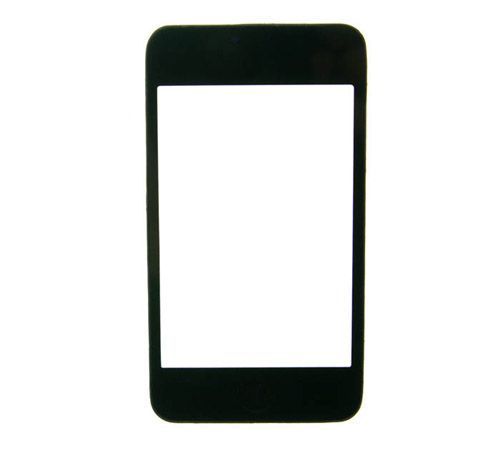
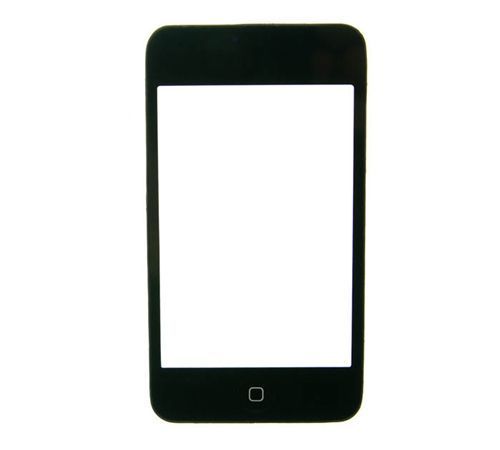
Although this part is more expensive than buying just the iPod Touch Digitizer and Glass, it is the absolute easiest way to repair your ipod touch with cracked glass. This is a complete Digitizer Assembly for iPod Touch Gen 3. Includes Pre-Assembled Digitizer, Glass, Frame and Home button. Compatible with 32GB & 64GB Gen 3 iPod Touch Only (volume button on the side - pre Aug. 2009). This part allows you to avoid scraping the broken glass out of its frame and having to attach the new glass to the old frame. Remove your old digitizer and frame assembly, plug in the digitizer connector from this new one and snap the new assembly into place.
Experiencing a White Screen?
It is very common for the iPod Touch 4th Generation to display a white screen after installation is complete. We wanted to provide all of our customers with a few troubleshooting techniques that may help resolve the issue. If you are experiencing this issue, try following the steps listed below:
First Step:
Let's try to reset the device. You can do this by holding down the Sleep/Wake button and the Home button simultaneously for 10-15 seconds. Continue to hold these buttons until either the battery symbol or the Apple logo appears. If the battery symbol appears, continue to charge the device until it is fully charged. If the Apple logo appears, the device has successfully reset. If this attempt doesn't solve the issue, try the next step listed below.
Second Step:
If a white screen still appears, let's try an iTunes restore. To do this, there are several steps to take:
1. It's very important to make sure the latest version of iTunes is installed before continuing.
2. Connect the iPod to your computer.
3. Select the device by name when it appears under the devices section of iTunes.
4. Click the tab labeled "Summary".
5. Click the "Restore" option.
6. THIS STEP IS VERY IMPORTANT: Select the option to back-up option when prompted to ensure data is not lost when restored.
7. Click the "Restore" option when it appears.
8. After the restore has completed, your device will reset and should display the Apple logo while starting up.
9. The device should remain connected to iTunes until the "Connect to iTunes" screen disappears or you see the "iPod is activated" response.
10. The final step of the process is to restore the device from the backup that was created previously.
We hope that these steps help resolve the issues behind the white screen. If the problem remains, feel free to request a return through our website: http://www.etechparts.com/returns.asp
|